You are hereHDR How To Guide

HDR How To Guide


Update - This is the old HDR How To Guide. I am in the process of finishing up the new guide right now. Check out this page to get a sneak peek at the new guide.

This HDR How to Guide will explain what HDR is and the process to making a HDR photographs. I will try to keep the HDR How to Guide as simple as possible so that everyone can understand and achieve their desired results. Included in this How to Guide is bits and pieces of video, charts and links that I found all over the Internet that helped me to get started in this type of photography style.

If you're like me and enjoy reading books, I would highly recommend, The HDRI Handbook by Christian Bloch. It is by far the best HDR book that I have read. I love it so much I wrote a review about it here.

The HDR How To Guide is broken up into 5 sections.

  1. High Dynamic Range Explained
  2. What You Will Need to Make HDR Photographs
  3. How to Get Multiple Exposures for HDR
  4. How to Merge Exposures Using Different Software
  5. How to do Tone Mapping for Desired Results
  6. HDR How To Guide Conclusion

High Dynamic Range Explained

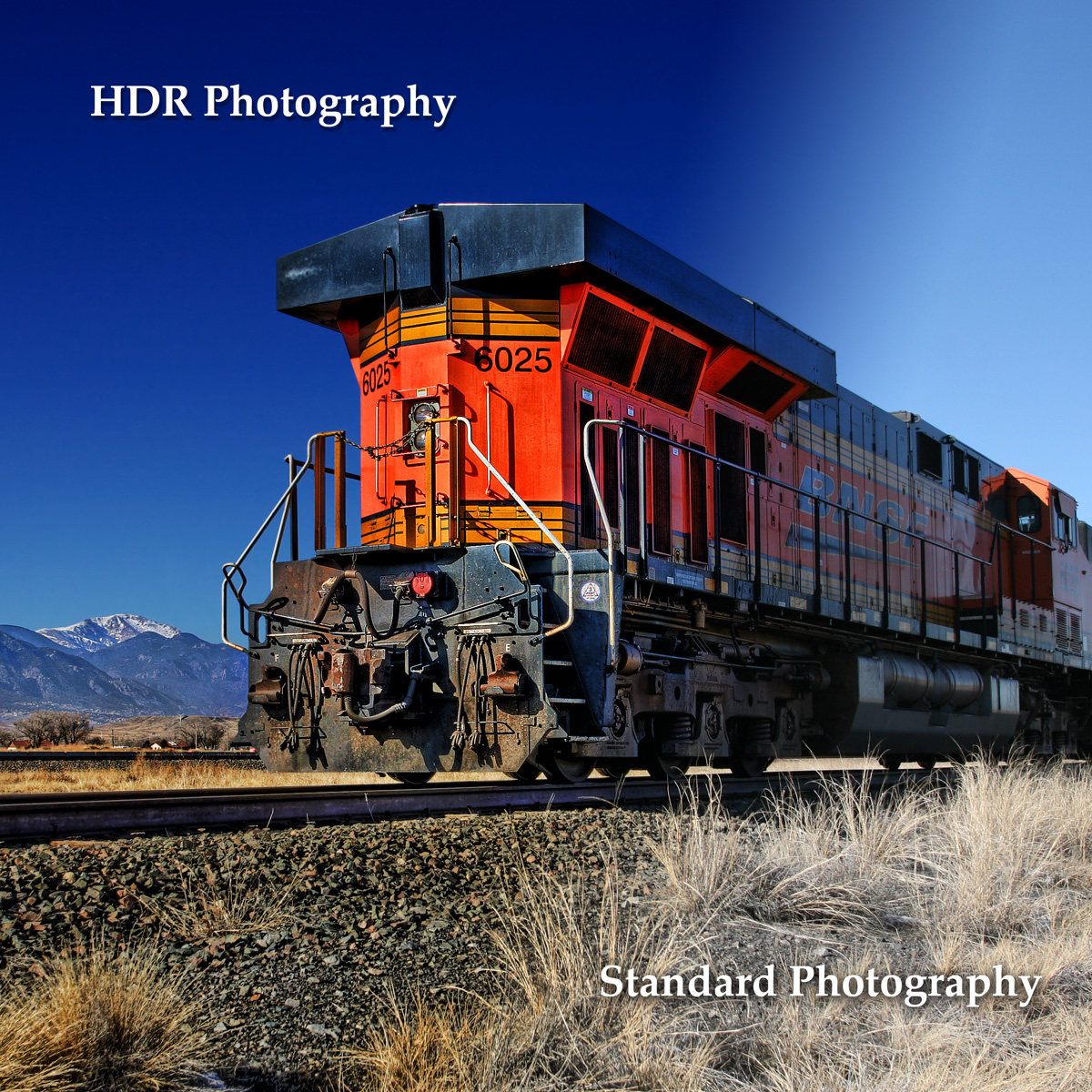
High Dynamic Range or HDR photography is an advanced photography technique that captures a wide range of highlights and shadows in a photograph. It's a process that combines multiple photographs of the same image, with each having a different exposure, to produce a detailed photo containing a full dynamic range.


Dynamic range, defined in photography, is the lightning difference between the dark and bright portions in a photograph. With HDR photography, one can capture scenes with a relatively high contrast compared to a single photo.

Unlike the human eye, cameras are mechanically limited to the dynamic range of a single shot depending upon the exposure the image was captured with. A camera can only capture a fixed range of tonal detail in the shadows and highlights of a single photograph. To get a full range of tonal detail or dynamic range, the photographer needs to take multiple shots with different exposure.

Below is a short clip found on youtube that might help explain High Dynamic Range Photography a little better.

What You Will Need to Make HDR Photographs

To produce a HDR photo you will need a few different things.

Required - Camera and Software
To produce a HDR photo you really only need 2 things, a Digital Camera and software to create the HDR image like Photomatix. You can pretty much use any digital camera. Here is a comprehensive list of preferred cameras that I found. These cameras have auto bracketing features that will make HDR processing easier in the end. As for the software I will be writing a HDR Review of different software that you can use to generate HDR images. Photomatix has been the most popular by far for HDR image processing. Read my HDR Review of Photomatix. You will also find a 15% Off Coupon Code for Photomatix on the same page. I'm also assuming you have a computer since you're reading this online. If you don't have a computer a PC, MAC or Linux system should work fine.

Optional - Tripod
I list tripod as optional because if you have a fast enough camera or your hands are made of steal than you can probably get away with it. However, you really should be using a tripod to create HDR images as this will give you the best results. Most tripods will work just fine, yes, even the cheapo ones you get at walmart but you get what you pay for. I've had a cheapo tripod for awhile and it worked great, until it broke. You can read my review here for a nice Manfrotto tripod and head combo and separate reviews of the Manfrotto 055XDB tripod and Manfrotto 322RC2 Grip Action Ball head here.

How to Get Multiple Exposures for HDR

There are a few ways to go about getting multiple exposures but before we begin lets go over what exposure is. If you already have a good understanding of what it is, go ahead and skip to Capturing Multiple Exposures. For all of you who don't, I'll try to keep it simple so we can move along to the more exciting stuff.

So lets start, exposure is the amount of light a camera captures within a give time. Light as we all know is what gives us images. At night we can't see because there is no light. We might be able to see some objects because of moonlight or streetlights but these objects are not as clear as if there were daylight.

When a camera captures light there are 2 factors that are involved, aperture and shutters. Aperture is the amount of light allowed to enter the camera. Think of it as a window, the bigger the window the more light will enter the room. The shutterspeed is like the curtains on the window that will allow the light in. When the curtains shut the room becomes dark.

So what does this have to do with exposure? The more light you let into the camera the the brighter your image will be. Until there is too much light which will make your image over exposed. Over exposing is used to photograph details that can only be captured with lots of light. The same goes for the reverse, less light will give you an under exposed image or darker photograph. Sometimes photographers will under exposed a photograph to capture a bright sky. Unfortunately by under exposing an image the foreground subject will be completely dark.

This is why we need multiple exposures so that we can capture all the different details of each photograph.

Capturing Multiple Exposures

Every camera is different so for me to try and explain how to get multiple exposures on every camera is impossible. Well not really, I just don't plan on spending the rest of my life writing a how to guide for every camera. For simplicity I will explain the 3 ways of getting multiple exposure for HDR which is basically universal for every camera.

These methods are automatically, manually and digitally. Automatically, is a method of setting the camera to take different exposures automatically... duh. This would be the ideal setup for photographing HDR. Some cameras don't have the automatic features so the photographer must capture each exposure manually. This can be done by adjusting the aperture and shutterspeed or dialing in the exposure to the desired setting. For all those who don't have the automatic feature and are to lazy to shoot multiple exposures, you can create different exposures digitally on your computer using software. Making HDR with digital exposures won't come out as good as in camera exposure but the results can sometimes be better for some photographs.

Capture Exposures Automatically with Your Camera

In this section I will only explain how to setup using the Canon 5D since this is the camera I use most often. Eventually I plan on posting videos of how to setup different cameras to take HDR photos, mainly Canon and Nikon DSLRs since these are the most popular.

How to set up the Canon 5D Mark1

To capture multiple exposures using the Canon 5D, the camera must be set to manual mode. These modes are P, Tv, Av, and M. If you're a beginner I would suggest putting it on P. Once a mode has been set press the Menu button next to the LCD screen. This will open the menu so can set the AEB (auto exposure bracketing). Scroll till you have AEB highlighted, select that setting so you can edit it. Dial your desired setting using the dial on the right side of the LCD screen. I normally dial out till the green tabs are at the ends which will give me a wider range of exposures.

After your AEB is set, you can have the camera take 3 automatic exposures just by holding down the trigger. This can be done by setting the camera to take continuos shots. To do this, press the DRIVE-ISO button on the top of the camera next to the trigger. Use the dial next to the trigger to select the drive option which will be a picture of three frames.

Capture Exposures Manually with Your Camera

Since all the Canon DSLRs are capable of shooting in AEB mode, I won't be explaining how to set it up manually. The Nikon D40 on the other hand doesn't have an AEB option so you must take each exposure manually. The only problem with shooting different exposures manually is that there is a chance of the camera moving. This will cause a ghosting effect later on in the post processing when we go to merge the exposures together. I don't have a Nikon D40 so I can't explain how to set it up but I did find a webiste that explained it pretty well. I have a friend who has a D40 and one day I'll do a video tutorial on how to setup the D40 for HDR but until then you're just going to have to click the link below and read it.

How to set up Nikon D40 for HDR manually

Creating Exposures Digitally from a Single Exposure

Sometimes capturing 3 exposures is impossible because the subject is moving or you just don't have the extra exposures. However there is away around this by faking the exposures. Below is an image that would be impossible to capture with multiple exposures so I applied this technique to make and HDR image.

Photo by Jennifer Croom

To get the other 2 images using Photoshop, I simply open the original file and adjust the exposure and save each file separately so that I can merge them latter in my HDR program. You can adjust the exposure in Photoshop by going to the Top Menu Bar, click on Image, then click on Adjustments and go to Exposure.

For this particular image I adjust the exposure up by 2 to get my over exposed image. To get the under exposed image I adjust the exposure by -2 and the offset by -.004 and the gamma correction by 1.3.

This is actually a very simple technique but the trick to doing this is to adjust the exposure properly so that you get the results you want when you go to make your HDR photo. This is something I can't teach because the end result is different for every photo.

This is a basic technique for single exposure HDR. I will write a more thorough article on this subject later because there are many different ways a photographer can go about creating a HDR image from a single exposure.

How to Merge Exposures Using Different Software

Photoshop

Adobe Photoshop has the Merge to HDR action that allows users to combine three or more different exposures of the same shot together into one HDR 32-bit photo.

  1. In the Photoshop window, open the HDR command tool by choosing File > Automate > Merge to HDR.
  2. Click the Browse button in the Merge to HDR window.
  3. Locate the images you will merge and load all of them in the exposure sequence. If you are using Adobe Photoshop CS3, you can enable the Attempt to Automatically Align Source Images option that will help you align the photo granted your images are not flawlessly aligned. After clicking OK, a Computing Camera Response Curves message will pop up.
  4. Select your preferred bit depth in the second Merge to HDR window. Choose 32 bits per channel if you prefer to cover the entire dynamic range completely.
  5. Browse through the Sources filmstrip and uncheck the thumbnails of the photos that you do not want to be included in the final output, if there are any.
  6. Adjust the slider in the Set White Point Preview histogram to determine your preferred exposure once a preview of your final merged output pops up.
  7. Click OK. 

Photomatix

Photomatix is by far the most well known HDR software used by most photographers because of its sophistication. 

  1. Launch Photomatix and click on Generate HDR Image button.
  2. Click the Browse button and choose the source photos you will be working on. Click Select > OK.
  3. After clicking OK, the exposure value settings of your chosen photos will appear. Determine if the settings are correct. Click OK.
  4. In the Generate HDR – Options window, check if the Align Source Images option is selected. This automatically aligns the vertical and horizontal aspects of your photo. To reduce “action” of the moving objects in your final photo, you can check the Attempt to Reduce Ghosting Artifacts option.
  5. Click OK and after a few minutes, a preview of your final merged HDR photo will appear.

Picturenaut

Picturenaut is a freeware HDR program. Like other software, it allows users to produce an HDR image from multiple photos.

  1. Open the Picturenaut program and choose File > Generate HDRI.
  2. Click Add in the Generate HDRI window and browse the source photos you will be merging into one HDR image. Click Open.
  3. Check the Exposure Correction box to optimize each exposure.
  4. Check the Automatic Image Alignment option. This functions the same way as Adobe Photoshop’s Attempt to Automatically Align Source Images and Photomatix’s Align Source Images.
  5. Choose the appropriate Pixel Weighting setting: Derivative, Derivative +hat 1, or Derivative +hat2. Go to http://www.hdrlabs.com/picturenaut for more detailed information regarding pixel weighting. You can try out with different value settings especially if you have difficult shots.
  6. Choose the proper curve setting for your final output. The default setting is Compute.
  7. Click OK. Picturenaut will then process your image. Once done, your merged HDR photo will be shown.

How to do Tone Mapping for Desired Results

Tone mapping is the process of mapping different exposure to produce a range of colors that are impossible to produce from a single exposure. This is where the magic happens and where the fun begins. It's time now for you the photographer to become an artist and be as creative as you want to be. However please note that HDR won't save a bad photograph. I've seen to often, on many different websites horribly composed photographs applying HDR hoping to make it look better, it won't.

The end result of a HDR image will depend on which software you use to produce your HDR image. There are many different HDR software that you can get to produce HDR images but the most popular is Photomatix. Keep in mind that different software will produce different results, like Picturenaut which is free, produces more realistic images. I highly recommend that you try out different HDR software before you make any decision to buy.

I don't plan on explaining the tone mapping process because I believe it's something that really needs to be shown to understand so eventually I will have a video up for this section of the HDR How to Guide.

HDR How To Guide Conclusion

In essence, the process of HDR photography emphasizes the best exposure for different parts of the same photograph. After taking a series of underexposed and overexposed photos of a particular subject and merging them together using software like Adobe Photoshop or Photomatix a photographer can then post process using tone mapping. Proper post processing of a HDR photograph will result in a picture with brighter colors, higher contrast, sharper images and greater details.

With HDR photography, a photographer is now able to capture photographs that the human eye is capable of seeing. This has taken photography into a whole new era giving the photographer an avenue with endless possibilities.

About Captain Kimo

Photography is one of many things I enjoy. I'm also addicted to coffee, technology, traveling, fishing, motorsports, art and music.

Random HDR Photo

Jupiter, Florida - Crab House